How do I set up Outlook to get my Rogers emails? (POP3 or SMTP)
To configure a Rogers Email Account in Microsoft Office Outlook
Click here for Mac Mail Settings
How do I set up iPhone or iPad to get my Rogers emails?
How do I set up my Rogers emails on Android?
How do I set up iPhone or iPad to get my Rogers emails?
How do I set up my Rogers emails on Android?
- Launch Microsoft Office Outlook
- Click Tools on the top menu and click Account Settings.
- Select the E-mail tab, and then click New.
- Enter the Rogers email settings as follows:
Your Name
Your email address
Account type : POP3
Incoming Mail server : pop.broadband.rogers.com
Outgoing Mail server : smtp.broadband.rogers.com
User Name : Your full Rogers email address (including @rogers.com)
Password : Your email password - Click More Settings
- Click on Outgoing Server tab and check "My outgoing server (SMTP) requires authentication".
- Select "Use same settings as my incoming mail server" (Default)
- Click on the Advanced tab
- Change Incoming Server (POP3) to 995. Check "This server requires an encrypted connection (SSL)."
- Change Outgoing Mail (SMTP): to 465. Select "SSL" for "Use the following type of encrypted connection."
- Click OK and click Finish
Note: This instruction should be fairly similar for Outlook 2003, Outlook 2007, Outlook 2010, Outlook 2013 and Outlook 2016.
We will compile an instruction for Outlook Express, Windows Mail and Thunderbird later.
To configure a non-@Rogers Email Account in Microsoft Office Outlook
- Launch Outlook
- Click Tools on the top menu and click Account Settings.
- Select the E-mail tab, and then click New.
- Click Next
- Select POP3
- Enter your Name and Email Address in the User Information Section
- Enter the Server Information as follows:
Incoming POP3 mail server: yourdomain.com
Outgoing SMTP mail server: smtp.broadband.rogers.com - Enter your Logon Information as follows:
Username: Your full email address (including @yourdomain.com)
Password: Your email password, check the "remember password box". - Click More Settings
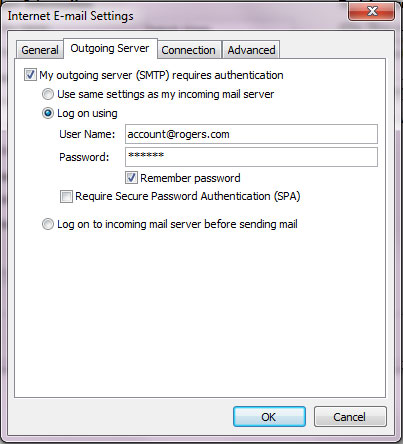
- Click on Outgoing Server tab and check "My outgoing server (SMTP) requires authentication".
- Select "Log on using" - Type in your full Rogers email address. (Refer to the picture on the right)
Type in your email password, check the "remember password box". - Click the Advanced tab
- Incoming Server (POP3) setting depends on your email provider. i.e. yourdomain.com
- Change Outgoing Mail (SMTP): to 465. Select "SSL" for "Use the following type of encrypted connection."
- Under "Delivery Options" - You could "leave a copy of messages on the server" for X days (this will conserve your mailbox space on the mail server but keep the most recent messages).
- Click OK, next and Finish.
Please note, when you are setting up a [email protected] account (3rd Party email) in Outlook using Rogers' outgoing smtp.broadband.rogers.com - you will have to register that [email protected] with Rogers. Otherwise, you may see a "553 Error Message" when you attempt to send e-mail.
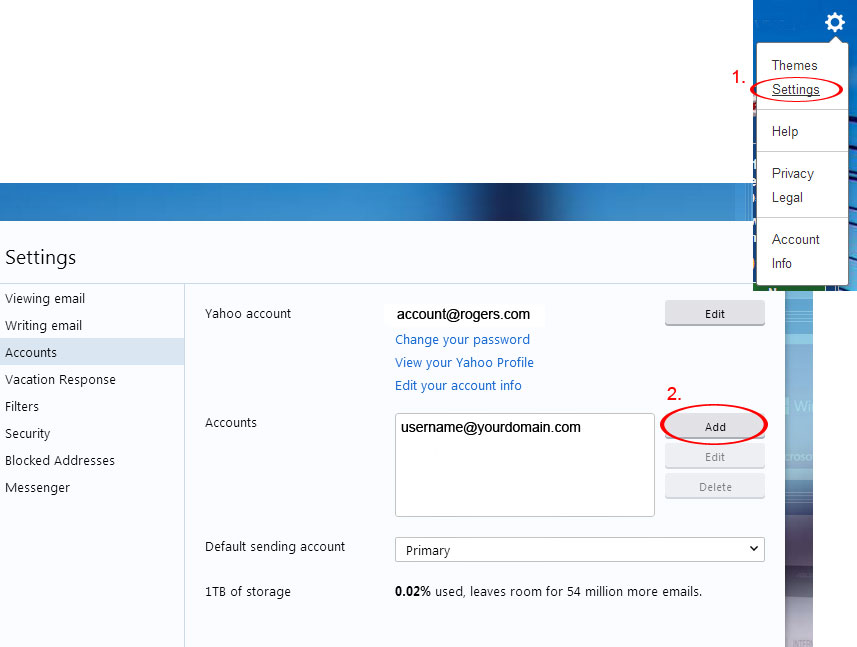
To register a [email protected] account: Login at http://rogers.yahoo.com (with your @rogers account) then go to Settings > Accounts (1.)
and press the add button (2.)